
Viewport
Capture what fits inside your chosen browser width and height.
Website to image
Turn a public website into an image for a preview, report or reference. Choose what to capture and how the page should appear.
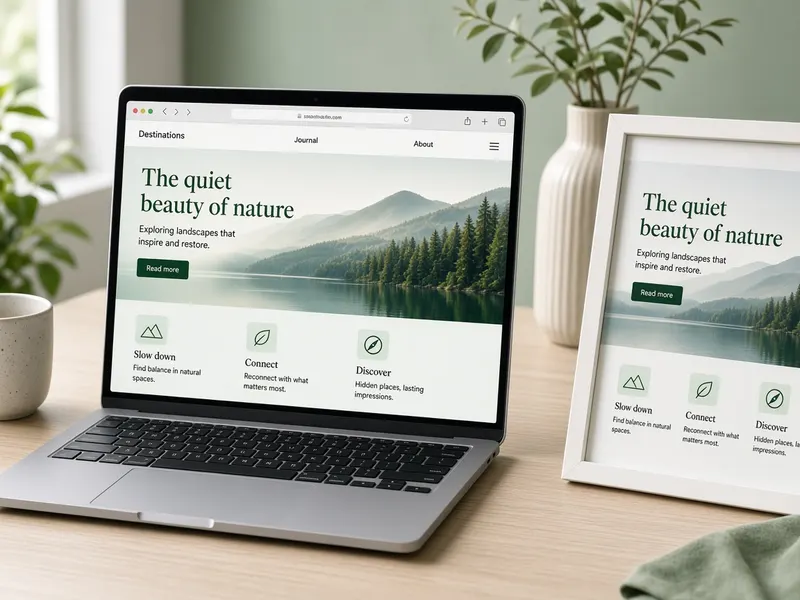
A URL becomes an image
Set a desktop or mobile-sized viewport. Capture the visible area, the full page, an element selected with CSS or a precise rectangle.
Use PNG, JPEG or WebP. Adjust scale and quality, choose a light or dark color scheme, and freeze animations for a still image.
Four ways to frame a page
Capture what fits inside your chosen browser width and height.
Include the page beyond the initial viewport, within output limits.
Use a CSS selector to focus on a specific section or component.
Set a rectangle with explicit position, width and height.
Timing and appearance
Choose a load condition and an additional wait of up to three seconds. Auto-scroll can reveal lazy-loaded content; tracker blocking, reduced motion and animation freezing help you control the capture.
Only public HTTP(S) pages are supported. Login sessions, cookies, private networks and authenticated pages are not accepted. A page may refuse automated access, and large captures remain subject to pixel and output limits.
Review capture options and limits →{
"url": "https://example.com/"
}One capture, one job
Request a quote for one capture, submit the URL and options, and retrieve the image when the job completes. Download it or save it to your project’s Outputs.
Where it fits
Prepare a visual reference for a report, capture your public landing page or create a preview of a resource. You control where the downloaded image is published.
Build with Imazeo
Create an account, set up a project and make your first API request.