
Your first image transformation
Upload an original and create a square WebP using a project API key. These examples run in your terminal or on your server.
On this page
1. Prepare your account and tools
Create an account, complete email verification if required, then create an active project in the Customer portal. Open that project’s API keys, create a key and copy its raw value when shown. Use that project’s UUID, not its name or slug.
Open Create project, then API keys in the portal. Select the project you created before issuing the key. Portal links open in a new tab so you can keep these instructions visible; sign in when prompted.
Use a small static PNG or JPEG you own. Check your account’s upload, processing, storage and bandwidth limits. These calls consume usage and retain the uploaded original and cached derivative.
For a reproducible input, download the original field-notebook.png into your working directory. For a second input, try the portrait studio-poster.png and update IMAZEO_INPUT.
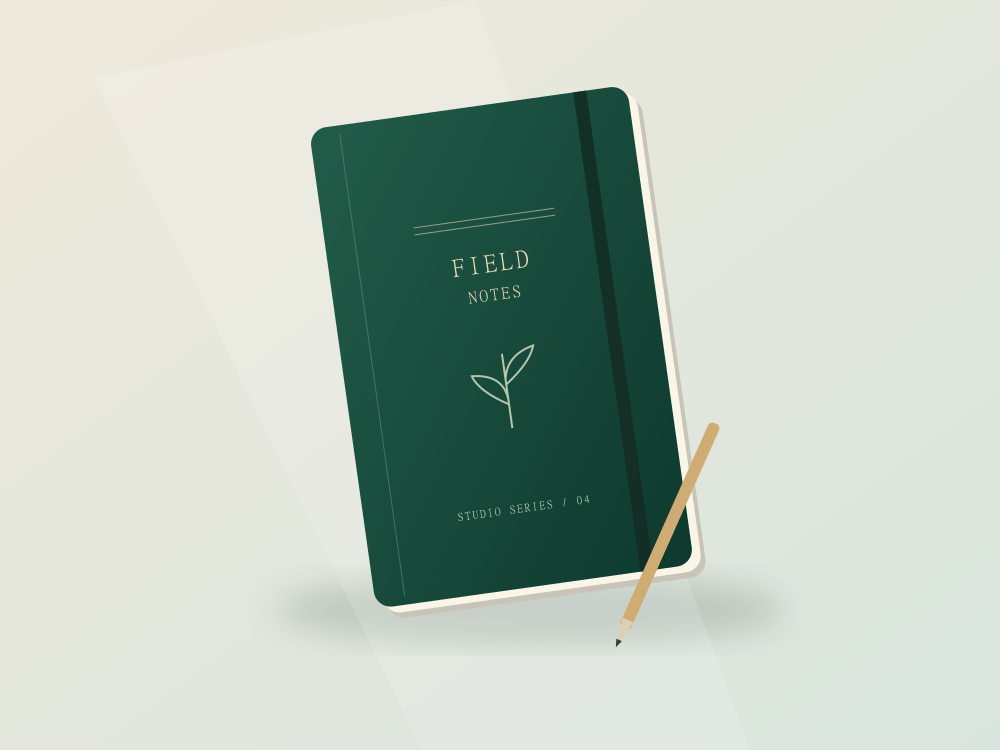

The cURL path requires Bash, curl with --fail-with-body support, Node.js 24+, wc and tr. On Windows, use Git Bash/WSL or the Node.js example. The Node.js path uses built-in fetch, FormData and Blob; no SDK is required.
2. Configure your local environment
Replace the project placeholder and file paths. The displayed API origin is this site’s configured origin; confirm it belongs to your deployment before sending a key. Use HTTPS outside loopback development. Enter the key at the hidden prompt, not in a committed file or shell history.
# Bash. Use the API origin supplied for your deployment (no /v1 suffix).
export IMAZEO_API_ORIGIN='https://api.imazeo.com'
export IMAZEO_PROJECT_ID='REPLACE_WITH_PROJECT_UUID'
read -r -s -p 'Project API key: ' IMAZEO_API_KEY; printf '\n'
export IMAZEO_API_KEY
export IMAZEO_INPUT='./field-notebook.png'
export IMAZEO_OUTPUT='./output.webp'
The examples below provide two alternative workflows. Run either the cURL steps or the complete Node.js script to avoid uploading twice.
3. Upload one original
/v1/projects/{projectId}/imagesThe upload header is the file’s exact encoded byte count, not multipart length. Let the client set the multipart boundary. The successful JSON envelope contains data._id; the cURL command stores it as IMAZEO_IMAGE_ID.
curl --fail-with-body --silent --show-error \
  --request POST "$IMAZEO_API_ORIGIN/v1/projects/$IMAZEO_PROJECT_ID/images" \
  --header "X-API-Key: $IMAZEO_API_KEY" \
  --header "X-Upload-Length: $(wc -c < "$IMAZEO_INPUT" | tr -d '[:space:]')" \
  --form "file=@$IMAZEO_INPUT" \
  --output upload.json && \
IMAZEO_IMAGE_ID=$(node -e 'const fs=require("node:fs"); const r=JSON.parse(fs.readFileSync("upload.json","utf8")); if(!r.success || !r.data?._id) process.exit(1); process.stdout.write(r.data._id);') && export IMAZEO_IMAGE_ID
Continue only after success (HTTP 201). Inspect upload.json on failure and use the error code to resolve the issue.
4. Request the square WebP
For cURL, run this after the upload step. A successful response is HTTP 200 with image/webp bytes. response-headers.txt includes X-Transformation-ID, X-Cache, image dimensions, ETag and X-Request-ID.
curl --fail-with-body --silent --show-error \
  --request POST "$IMAZEO_API_ORIGIN/v1/projects/$IMAZEO_PROJECT_ID/transforms" \
  --header "X-API-Key: $IMAZEO_API_KEY" \
  --header 'Content-Type: application/json' \
  --data "{\"imageId\":\"$IMAZEO_IMAGE_ID\",\"mode\":\"CACHE\",\"transform\":{\"width\":600,\"height\":600,\"fit\":\"cover\",\"format\":\"webp\",\"quality\":80}}" \
  --dump-header response-headers.txt \
  --output "$IMAZEO_OUTPUT"
The Node.js tab is a complete alternative that uploads and transforms. Download quickstart.mjs, then run node quickstart.mjs with the same five environment variables. It refuses to overwrite an existing output file and does not write an error body as an image.
cURL writes the response body to IMAZEO_OUTPUT even on an HTTP failure with --fail-with-body. Check its exit status and response-headers.txt before opening the file as an image; on failure it contains JSON instead. Choose unused local filenames to avoid overwriting files.
5. Inspect and clean up
Open the output only after success and confirm a 600 × 600 image. CACHE requests may return HIT or MISS; either can produce the same image. Repeated requests still use bandwidth. The portal lists the original and stored derivative for review and deletion.
Remove media you no longer need through the portal. Deletion refunds stored bytes, not past processing or transfer usage. Revoke the key if it is no longer needed and clear the local environment variable with unset IMAZEO_API_KEY.
A timeout does not prove the server canceled the request. Review project media and usage before retrying an upload.
Documentation reviewed 2026-10-03 against development backend e298ec7. Verify your deployment’s API origin and limits before integrating.