QR codes & barcodes
Generate QR codes and barcodes.
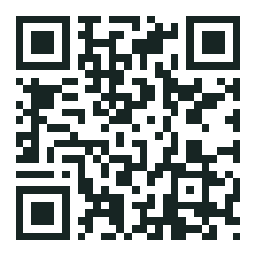
Create a QR code for a link or text, or a barcode for an item identifier. Choose PNG or SVG and set the size, colors and layout.
 SCAN / EXAMPLE CATALOG
Give every item
a useful code.
 CODE 128 / IMAZEO-2026
QR codes
Connect a scan to a destination.
Encode a URL or text. Control the square size, margin, colors and error correction level. Use SVG for scalable layouts or PNG for a ready-to-use raster image.
QR output is static. Changing the destination requires a new code unless you control a redirect at the encoded URL.
Read the codes referenceBarcode formats
Match the code to your identifier.
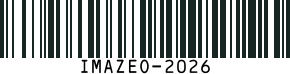
Use Code 128 for general labels or a supported numeric format for an existing identifier. Choose scale, bar height and whether to include readable text. Supply valid data for the selected barcode type; generating a barcode does not assign a retail identifier.
PNG or SVG
Receive a PNG or SVG.
QR and barcode generation each consume one processing credit. Generation returns the file without saving it. Keep it in your application or use a separate Save request for later private retrieval.
Configure a code request{
"content": "https://example.com/catalog",
"format": "svg",
"size": 256,
"margin": 2,
"errorCorrection": "M",
"foreground": "#172523",
"background": "#ffffff"
}Before you ship
Check the code where it will be used.
Keep contrast high and leave a clear margin. Test scanning at the final display or print size. Content byte limits and generator bounds apply in addition to your project’s request limits.
- High contrast
- Clear margin
- Test at final size
Build with Imazeo
Start with your first project.
Create an account, set up a project and make your first API request.