
Image API workflows
Product thumbnails with the Image API
Give a product grid consistent dimensions while choosing how much of each original to preserve.
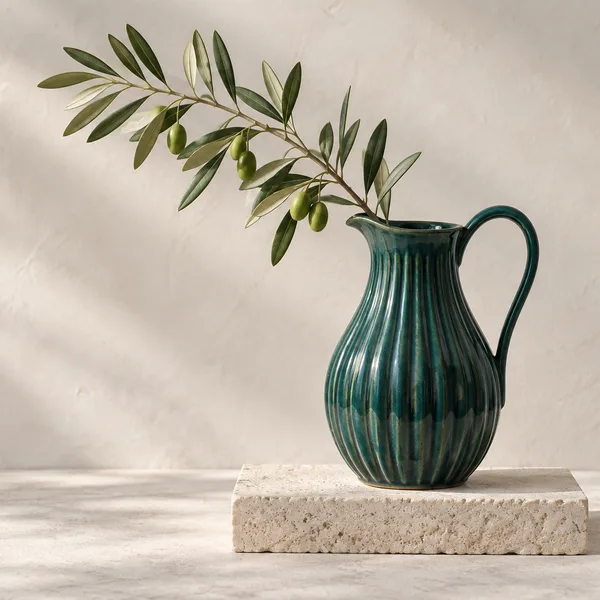
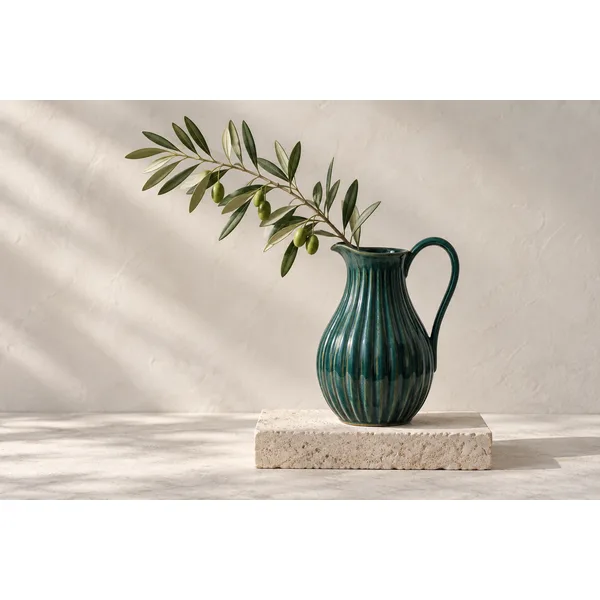
Crop the frame or preserve the product?
Use cover when every tile must fill its square and cropping is acceptable. Use contain when the full product must remain visible; both modes require width and height. Review a representative set of originals before choosing one policy for your catalog.
A square crop can remove labels or product edges. Use contain or an explicit crop when composition matters. Animated contain is rejected, so use static source images for that workflow.
Build the workflow
- Upload the original to the project that owns the catalog media.
- Request a 600 × 600 WebP with cover. For a full-product presentation, use contain with both dimensions instead.
- Receive the image bytes on your server and serve them through your application's authorized media path.
Request the output from your server.
POST this JSON body to /v1/projects/{projectId}/transforms with a project API key. Replace the example image ID with an uploaded original in that project.
{
  "imageId": "00000000-0000-4000-8000-000000000001",
  "mode": "CACHE",
  "transform": {
    "width": 600,
    "height": 600,
    "fit": "cover",
    "format": "webp",
    "quality": 80
  }
}